Permanently Delete Facebook Account: Facebook is one of the biggest social networking site which connects a number of people. Facebook needs an account to log in and enjoy the interface. Also, some of the users are fed up with Facebook and they even want to delete facebook account permanently. They are also not interested in using the facebook account for many reasons. If you are one among them and want to delete the account of facebook. Then, We are providing the users with a guide on how to delete a Facebook account.
Facebook has provided the users an option to delete facebook permanently for the drop users. But if you delete the account then all your data like messages, comments, likes, shares, etc will be removed from the facebook permanently. So check once before deleting the account on Facebook.



In this article, we are going to show the step by step process on how to permanently delete facebook without leaving any data in the Facebook server. Follow the article completely and permanently delete facebook account without any issues.
Ways to Delete Facebook Accounts Easily
For the users who want to erase their data in facebook accounts, they have mainly two options resulting in deleting and deactivation. That is they can delete the facebook account permanently or deactivate the facebook account temporarily but now for the updated versions of Facebook temporary deletion is not there. So we have listed the 2 best ways to delete facebook account. They are as follows..
- Delete Facebook Account Permanently
- Delete Facebook account using Mobile App
You can use any of the above methods according to your interest. We will provide the complete step by step process for both ways.
How to Delete Facebook Account Permanently
Here we are showing the complete guide on how to delete facebook account permanently without any trouble. Just follow the steps carefully.
- First, you need to login to your facebook account with your original facebook id and password.
- Click on the facebook settings option which is on the top right. Exactly side of the help center as shown in the image below.
- Now you will see the list of options, in that select settings. Click on settings.
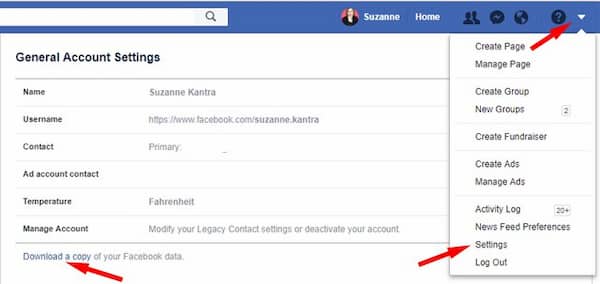
- You will now visit the general account settings page.
- Check for manage account option, which is the last option, now click on edit button which is aside of manage account.
- It will now display the legacy contact page.
- Here you can request the account deletion. This is if you want to delete your account after your death. This option is given by Facebook in order to make the account delete after the person died.
- For confirmation any one of your friends should inform to the Facebook team then only they will delete the account.
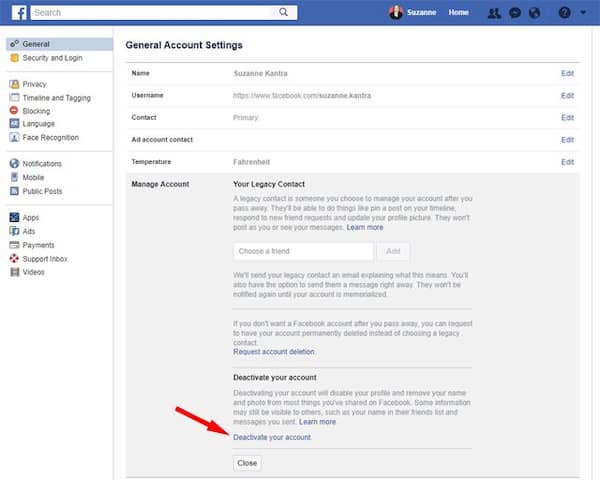
 Now to delete account permanently click on the option deactivate your account.
- It will ask for the reason why you want to deactivate your account. Here you need to provide the reason for deactivation.
 Now to delete account permanently click on the option deactivate your account.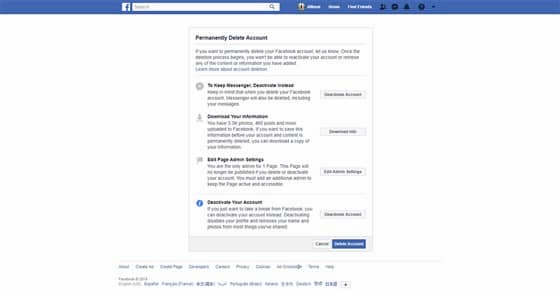
- Then click on the deactivate button.
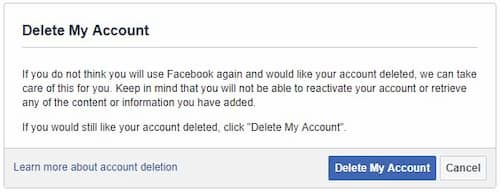
- That's it!!! Now your account will be deactivated.
But here the user needs to wait for 14 days to delete the account permanently. After 14 days your account will be removed from the facebook servers.
How to Reactivate Facebook Account
[su_box title="Pro Tip: Reactivate Twitter Account" style="glass"]
Once you have deleted the account in facebook then it does not erase all the data. According to facebook server if an account has been requested for deactivation then they will simply deactivate the account but does not erase the data from servers. They provide a minimum time of 14 days to delete the account permanently. Reactivate facebook account with the following steps:
- Visit the facebook page.
- Login with facebook id and password.
- The account will be Reactivated in seconds
- All the data will be back like comments, shares, likes, etc.
Finally, you can get back your account as before.
[/su_box]
Recommended Article:
- How to delete Spotify account
- How to delete pof profile
- Delete skype account
- How to delete WhatsApp account without phone
- Delete Whatsapp message from the server
Delete Facebook Account on Mobile
Many of the users are using the Facebook mobile app. So rather than visiting the browser and trying to delete the account on Facebook, you can simply use the mobile app for deleting facebook account permanently. Simply follow the steps below and delete the facebook account on mobile.
- First login to your mobile app and click on the settings button which is on the top right corner as shown in the image. Now check for the account settings and click on it.
- In the account settings, you will see some options, in that click on general.
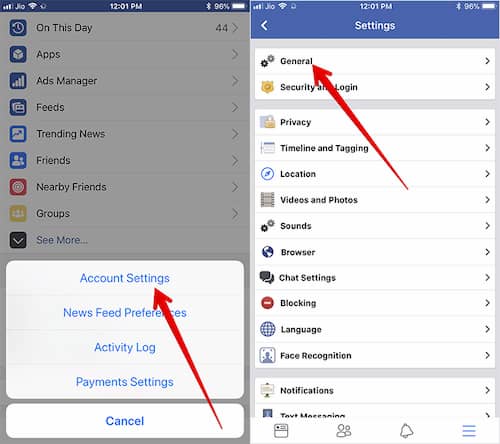
- Here the general settings will be displayed, in that select the managed account option.
- Now check that you have got the option like the image below. To remove the account click on deactivate button which is shown.
- Here it will ask for the reason why you want to delete your facebook account. For that, you can select any option of your wish and click on deactivate button.
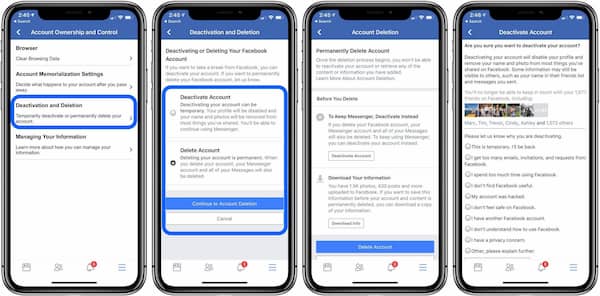
- You can even enter any of the reason which you have in the box provided. That's it
- Your account will be deactivated now.
Conclusion
As a result, you have got how to delete my facebook account without any issues. Here we have described the complete method to deactivate FB account permanently. If you have any issues regarding this deletion of facebook account you can contact us at any time. We are here to help you, therefore you can use the comment box below to contact us. Share the article on social networking sites to help your friends. Stay tuned to trickism for more awesome articles.